



For individuals
Free
You (admin) + 1 worker
- Stamped camera
- PDF reports with a QR code on each registered photo
- Photos anyone can check
- Add one worker with a code
- Up to 100 team photos online, kept 30 days

The GPS timestamp camera app for field teams
Verification built into every photo. Time, GPS location, address, a note and who took it, burned onto every shot.
Free for individuals. iPhone and Android.
How it works
The stamp is on the screen before you take the photo.
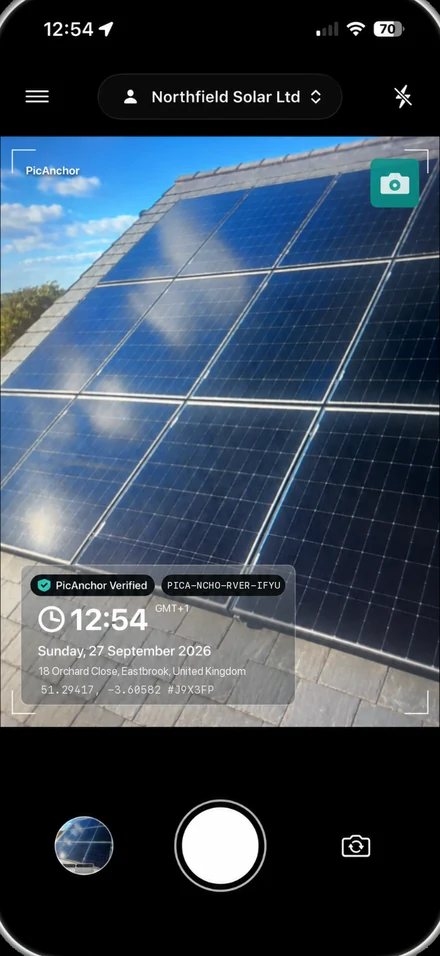
01Point
The stamp is live on the camera screen before you shoot: the time, the place and who is taking the photo. On a team, the company sets what it shows.
Step 1: the PicAnchor camera pointed at solar panels on a slate roof, the stamp for Northfield Solar Ltd live on the screen at 12:54 GMT+1, before the photo is taken
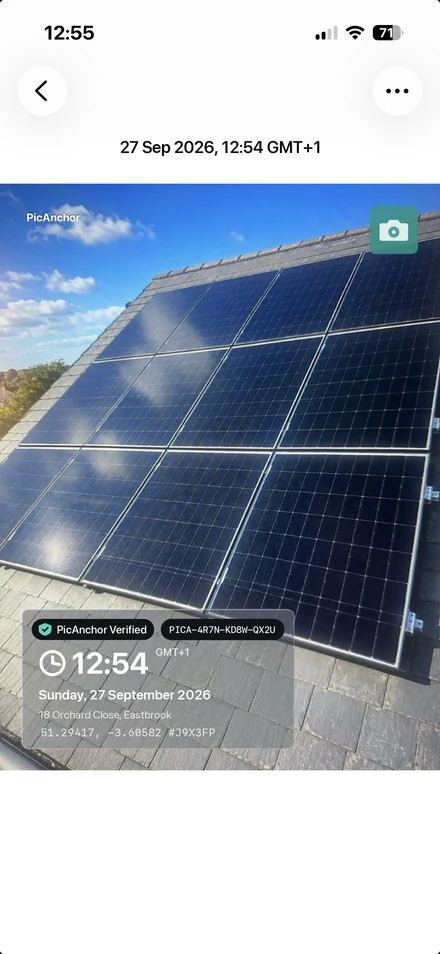
02Shoot
Press the shutter and the stamp is burned into the photo. Its fingerprint is taken at the same moment and registered straight away, or as soon as the phone has signal.
Step 2: the saved photo in the app's viewer, 27 Sep 2026, 12:54 GMT+1, with the stamp burned into it
03Check
Anyone can check the photo at verify.picanchor.com (opens in a new tab), with no account: scan the QR code or enter the photo's code, then compare the file.
Step 3: Safari on verify.picanchor.com showing the result for this photo: Registered, this code is in the registry, captured on 27 September 2026 at 12:54:38 and registered 3 seconds later
In the field
Construction, maintenance, inspection, delivery or a damaged vehicle. The stamp records the same details every time.
Construction
Pours, rebar, snagging and progress, in the same format for everyone on site.


Maintenance

Inspection
Scaffold tags, roofs and defects, recorded the same way by every inspector.

Clients and site managers can scan the QR code in a report to check a photo.


Delivery
Vehicle damage
GPS location and street address on the photo, when online.

The time is stamped the moment you take the photo.

For teams
Add your team to the app. Every photo is tagged by who took it and stamped in your company's format.
1The admin adds a worker by name. PicAnchor gives them a 6-digit code.
2The worker joins with their name and the code, then shoots as normal. The stamp is added automatically.


3Photos land in the team gallery and the web dashboard, tagged by who took them.
Tap a worker to filter the gallery. Filtering by worker is on iPhone and the web dashboard.
Workers join with their name and a 6-digit code from the admin.
No account, no email, no password
That is all a worker types. Nothing is sent.
The admin sets one stamp format and it is locked on every worker's phone.
Locked by adminSee who has joined and whose code is still waiting.
One phone works for personal and team use.
Admins run the team. Workers take the photos.
Admins also get a web dashboard at picanchor.app, with every photo filterable by worker and date.


Reports
Pick your photos and PicAnchor turns them into a PDF report. Every photo in it carries a QR code, so whoever reads the report can check it.
01Select
Choose Export PDF from the gallery menu, then tick the photos. A report holds your company's photos only.
Step 1: the PicAnchor gallery in Company view, eight photos of one renovation ticked in walk-through order, and the Export PDF button
02Export
Tap Export PDF and pick a layout: two photos to a page, or four.
Step 2: Choose a Layout, with 4 per page tapped
03Report
Your company and the dates on every page. Each photo with its time, address, who took it and its own QR code.
Step 3: the report preview, page 1: the four rooms boarded out on 11 August 2026
04Summary
Page after page, then a summary of every photo. Share it straight from your phone.
Step 4: the report preview scrolled through page 2, the same four rooms finished on 15 September 2026, into page 3, the summary
Works offline
Photos are stamped when they're taken and sync when the phone is back online.
Anyone can check
Every photo's fingerprint is registered. Scan the QR code on a report or enter the photo's code at verify.picanchor.com, then drop the photo file onto the page to compare it: the comparison runs in your browser and the file is never uploaded.
Open verify.picanchor.com (opens in a new tab)
Plans
Fleet plans are bought inside the app, through the App Store or Google Play. Prices are shown in the app and vary by country.
For individuals
You (admin) + 1 worker
Fleet
You + up to 10 workers
2-week free trialFleet
You + up to 30 workers
2-week free trialMore than 30 workers? Email hello@picanchor.com
FAQ
No. The admin adds them by name, each gets a 6-digit code, and they join in the app with their name and code.
Yes. The camera, stamps and PDF reports are free, with no account needed. Photos stay on your phone.
Both. Admins also get a web dashboard at picanchor.app.
Yes. Photos are stamped when they're taken and sync when the phone is back online.
Scan the QR code next to the photo in a PicAnchor report, or enter the photo's code at verify.picanchor.com (opens in a new tab).
Prices are shown in the app and vary by country. Both plans start with a 2-week free trial.
Fleet plans are bought inside the app, through the App Store or Google Play, monthly or yearly.
Email us at hello@picanchor.com.
Free for individuals. Fleet plans start with a 2-week free trial.


Scan with your phone